
NIC Capture: Sniff Mini-Programs and Flutter Apps
To capture WeChat mini-programs, Flutter apps and anything else that ignores the system proxy, use Trace Eagle’s NIC capture: it records all traffic crossing this machine’s NIC (DNS, QUIC, TCP, UDP and more) without changing any settings or installing a certificate. A proxy tool sees nothing from these programs because their traffic never reaches the proxy. Captured HTTPS is ciphertext by default; common programs such as browsers are usually decrypted automatically, and for the rest one click on “Decrypt this program” shows plaintext.
Why can’t a proxy capture mini-programs?
Section titled “Why can’t a proxy capture mini-programs?”Proxy capture only sees “the part of the traffic that goes through the proxy.” WeChat mini-programs, Flutter apps and similar programs ignore the system proxy, so the proxy tool never receives a single packet.
NIC capture shows everything flowing across this machine’s NIC: DNS, QUIC, games, IoT, all kinds of proprietary protocols. Anything that crosses the NIC is in front of you, whether or not it uses a proxy.
How is NIC capture different from proxy capture?
Section titled “How is NIC capture different from proxy capture?”The two are complementary, each with its own use cases:
| Proxy capture | NIC capture | |
|---|---|---|
| How you tap in | Route traffic through a proxy + trust a certificate | Capture the raw packets on the NIC directly, without changing any settings or installing a certificate |
| What you can see | Traffic that went through the proxy, mainly HTTP(S) | All traffic on the NIC: DNS, QUIC, ICMP, ARP, any TCP / UDP… |
| Plaintext by default? | Plaintext by default | Ciphertext by default; “Decrypt this program” in one click when needed (see below) |
| Best for | Debugging HTTP APIs, rewriting / replaying | Viewing non-HTTP traffic, seeing everything a program does on the network, avoiding any system-level changes |
In short: proxy capture is “precise,” NIC capture is “complete.” If you want to know exactly which addresses an app is quietly connecting to and which protocols it uses, NIC capture lays it all bare.
How is it different from traditional NIC capture tools?
Section titled “How is it different from traditional NIC capture tools?”Traditional NIC capture tools can grab the packets, but the HTTPS they capture is a pile of ciphertext, and they have no idea which program sent it. NIC capture builds on “can capture” and adds “can understand, can trace”:
- Can decrypt: turn a program’s HTTPS from ciphertext back into plaintext in one click (see “Can NIC capture decrypt HTTPS?” below).
- Knows who sent it: every flow is tagged with its source process, so you can pinpoint it even in a noisy environment.
- Can trace the peer’s background: click a remote IP to go straight to its host profile (attribution / geography / certificate).
- Can take it apart: captured data is automatically decompressed, format-detected and displayed in a structured way, and proprietary protocols can be decoded with a custom decoder (see “After capture” below).
- Can also feed Wireshark: forward the traffic live to Wireshark in one click, where it opens as plaintext, even on another machine.
Starting a capture: pick a NIC and a filter
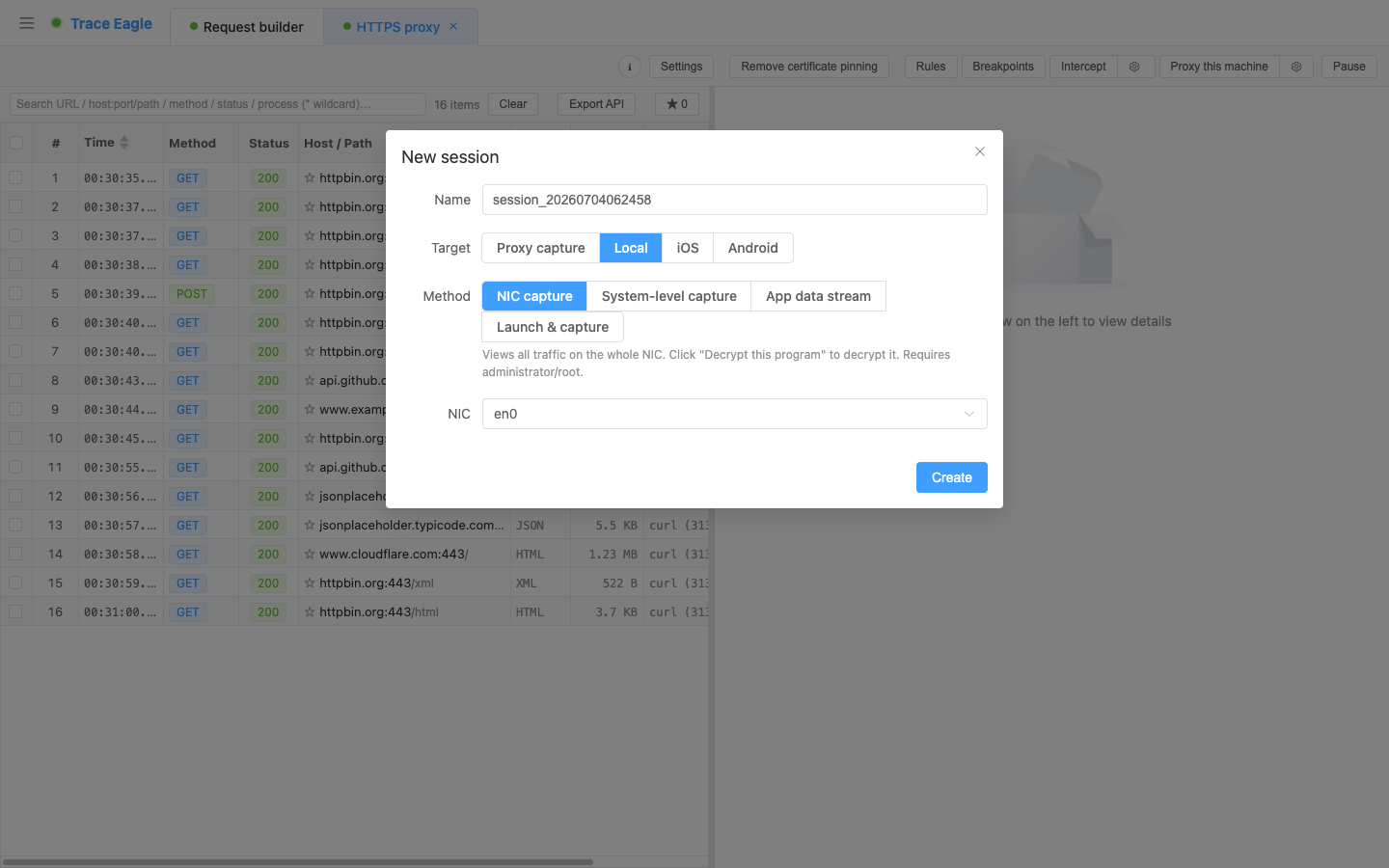
Section titled “Starting a capture: pick a NIC and a filter”- Pick a NIC: all NICs on the machine are listed automatically, with the currently active one selected by default.
- Set a filter before you start, if you like: enter a capture filter to capture only what you care about. Common presets are built in (TLS / HTTP / QUIC / DNS / TCP / UDP / ICMP / ARP / SSH, and more), one click to apply.
The capture filter is set before you start and cannot be changed once capture is running; it determines “what gets captured” at the NIC layer. To narrow down within already-captured data, use the “display filter” in the packet view (see “Two views” below).
Can NIC capture decrypt HTTPS?
Section titled “Can NIC capture decrypt HTTPS?”Yes. Traffic captured off the NIC is ciphertext by default (captured as-is, with no man-in-the-middle). Seeing plaintext comes in three tiers, each backing up the last:
- Automatic decryption: common programs such as browsers and Electron apps are usually plaintext the moment they’re captured, with no extra steps.
- Manual “Decrypt this program”: for programs that can’t be decrypted automatically, click “Decrypt this program” and select it. Decrypting multiple programs at once is supported.
- Two reinforcement switches:
- Restart the program: launch the target from scratch so that even its early-startup encrypted traffic is decrypted.
- Handle child processes in one click: some programs send and receive traffic through child processes; check this box to handle the child processes too, so nothing is missed.
Common programs are plaintext the moment they’re captured, and for the rest one manual click on “Decrypt this program” does it. For what decrypts automatically and what needs an extra step, see how to decrypt HTTPS.
Two views: by packet and by connection
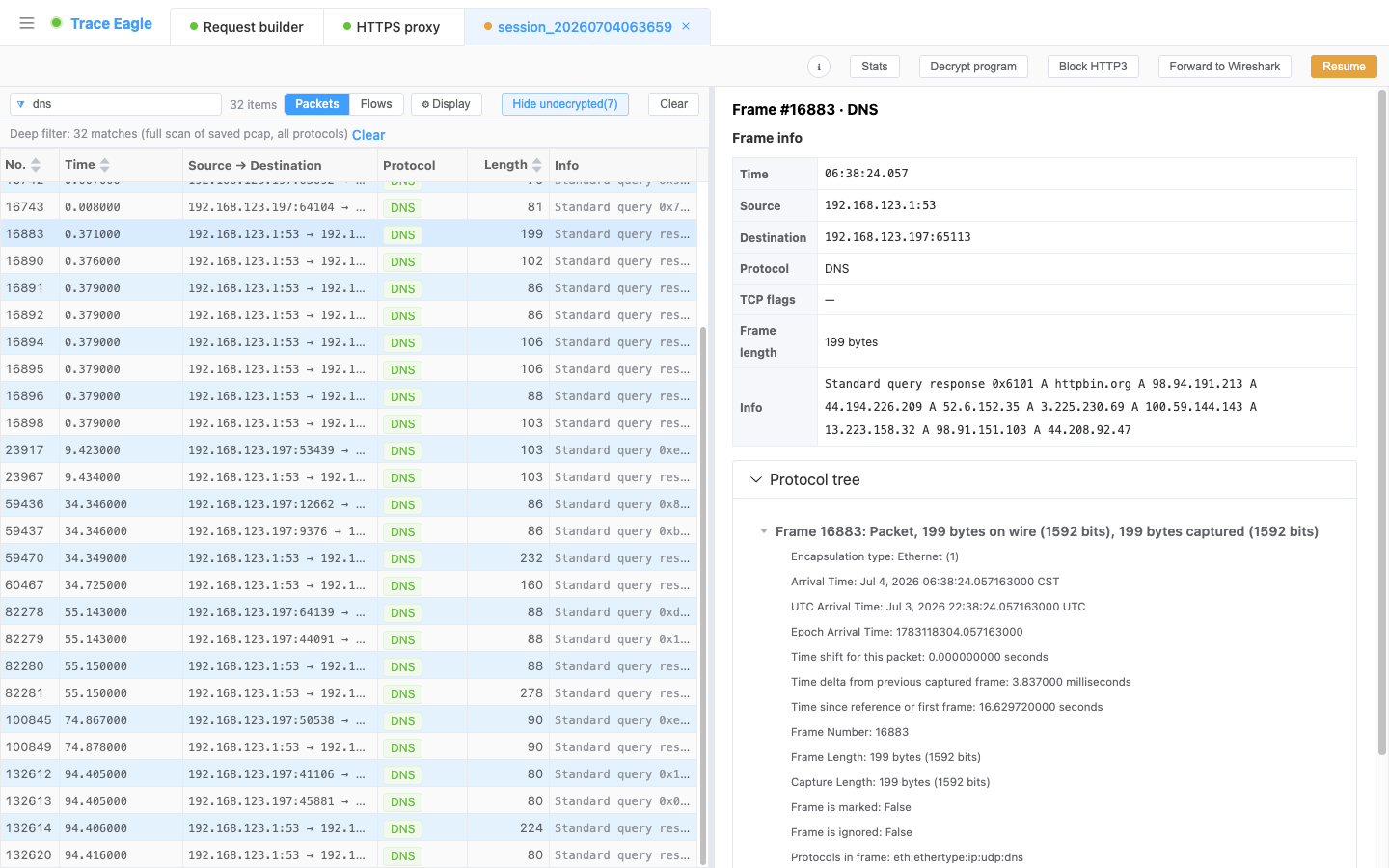
Section titled “Two views: by packet and by connection”- Packet view: look at each packet one by one, like a professional capture tool. Select a frame to see the frame info, the raw bytes, and the protocol tree expanded layer by layer. The search box supports Wireshark-style display filters (such as
tcp.port==443,tls.handshake), with live syntax validation as you type.
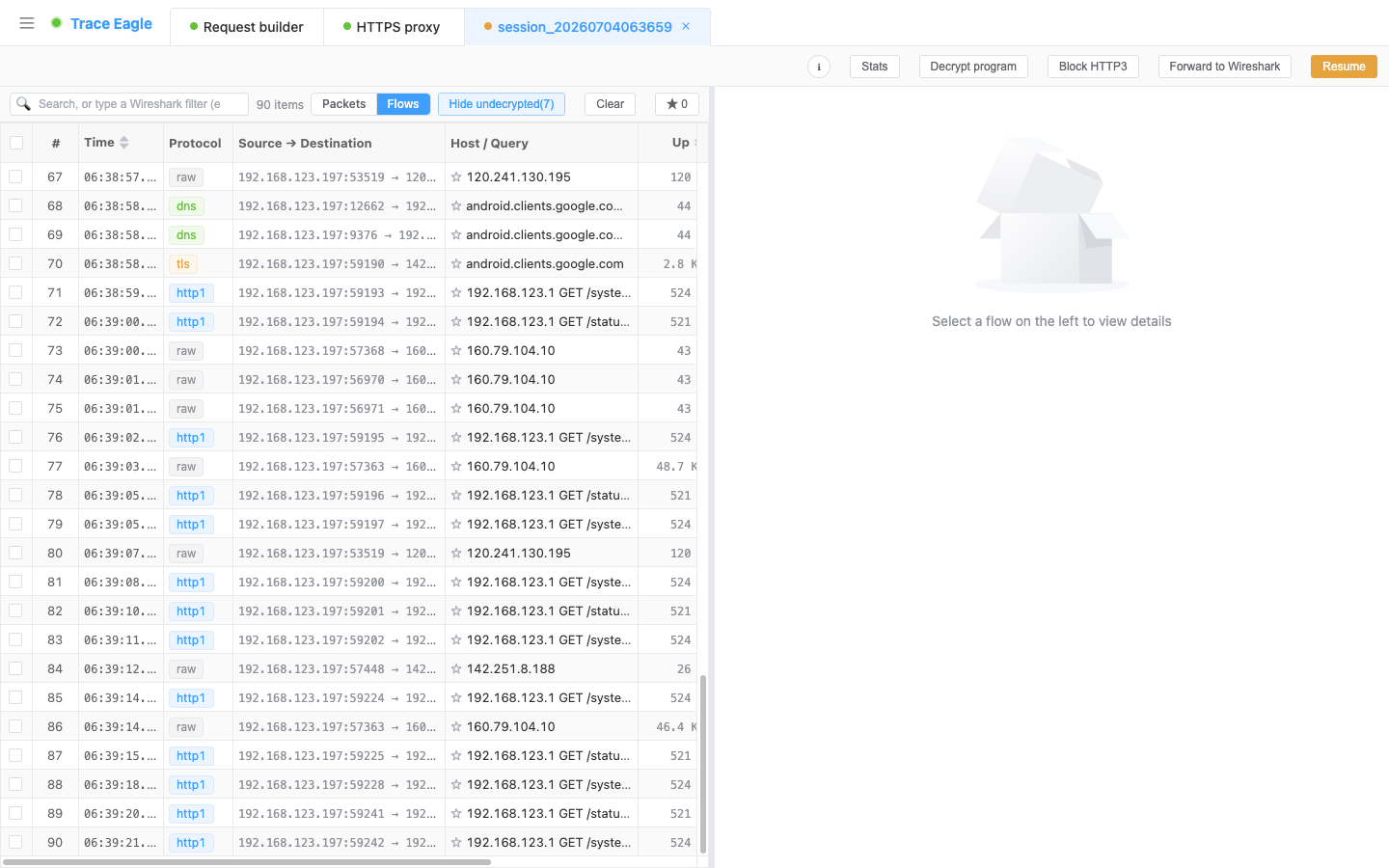
- Connection view: reassemble scattered packets into individual connections, and use “Follow Stream” to see a connection’s send/receive from start to finish; HTTP / DNS and others can also be viewed in a structured way.
- Right-click actions: right-click any frame to view only this connection / filter to this connection, mark the frame, copy the source / destination address, or for the remote IP, go straight to view host profile / ping / port scan.
- The two views cross-link (jump from a connection back to its raw packets, or from a packet follow the entire connection).
- Statistics: summaries across three tables (protocol hierarchy, conversations, endpoints), optionally over just the current filter results, to see “who’s using the bandwidth, and who they’re talking to.”
- Pause anytime: pause mid-capture to look at what you have so far, then continue, without starting and stopping long sessions.
After capture: understand it, decode it
Section titled “After capture: understand it, decode it”The same data can be viewed in multiple ways, and the engine decodes it for you automatically. This is common to all capture methods and applies here too:
- Multiple ways to view: structured, prettified text, hex, and auto-detect, switchable independently for each direction. See Inspect & Decode for details.
- Auto-detects many encodings: decrypted HTTP content is automatically decompressed for gzip / brotli / deflate / zstd (including multiple stacked layers), and JSON, XML, forms, protobuf / gRPC and plist are auto-detected and prettified, with images / audio / video previewed inline.
- Custom codecs: for proprietary / in-house protocols, write a short script to teach it how to read them: split frames, strip headers, decompress into a readable structure. See Custom Protocol Decoding for details.
Can it capture and decrypt HTTP/3 (QUIC)?
Section titled “Can it capture and decrypt HTTP/3 (QUIC)?”Yes. More and more apps use HTTP/3 (built on QUIC, RFC 9000), and QUIC has always been hard to capture and decrypt at the NIC layer, where many tools simply stop. NIC capture works both ways:
- Fall back to an ordinary connection: let the target app fall back smoothly from HTTP/3 so it becomes capturable and decryptable again; it recovers automatically when you stop the session, without affecting the app’s normal use afterward.
- Decrypt directly: when the keys are available, it can decrypt QUIC / HTTP/3 directly and show plaintext.
Even for apps that have gone fully HTTP/3, you still see their plaintext exchanges, instead of staring at a pile of QUIC you can’t touch.
How do I hand traffic off to Wireshark?
Section titled “How do I hand traffic off to Wireshark?”Forward this session’s traffic live into Wireshark in one click, where it opens as plaintext with no extra configuration and no exporting back and forth. Decryption keys are injected incrementally, live along with the traffic, so late-arriving keys are filled in and no frames are lost (for how Wireshark decrypts TLS, see the Wireshark Wiki: TLS).
It can even send the traffic to Wireshark on another machine: this machine captures and decrypts while the other focuses on analysis, a natural fit for remote collaboration.
- Export to a file too: export a
.pcapngwith the decryption keys embedded in one click (open it in Wireshark and it’s plaintext) or a standard HAR, and hand it to a colleague with nothing else to set up.
So you get the best of both worlds: this tool’s “decryption + process attribution + one-click host profile,” plus Wireshark’s deep packet-by-packet analysis.
Typical use cases
Section titled “Typical use cases”- Capturing programs that ignore the proxy: WeChat mini-programs, Flutter apps and others a proxy cannot see.
- Viewing non-HTTP traffic: DNS, QUIC, games, IoT, all kinds of proprietary protocols.
- Understanding everything a program does on the network: which addresses it connects to, which protocols it uses, and whether it has any “quiet” connections.
- Not wanting to change the system proxy or install a certificate: capture directly, zero intrusion.
- Tackling proprietary protocols: after capturing the raw flow, use a custom decoder to restore it to a readable structure.
- Handing off to Wireshark for a deep dive: forward it live, where it opens as plaintext.
Does NIC capture need a certificate or a system proxy change?
Section titled “Does NIC capture need a certificate or a system proxy change?”Neither. It captures raw packets on the NIC without acting as a man-in-the-middle, so no settings change and no certificate is installed.
Can I change the capture filter after starting?
Section titled “Can I change the capture filter after starting?”No. The capture filter is set before you start; to narrow down captured data afterward, use a display filter in the packet view (such as tcp.port==443).
Can a colleague read an exported pcapng as plaintext?
Section titled “Can a colleague read an exported pcapng as plaintext?”Yes. The exported .pcapng embeds the decryption keys, so it opens as plaintext in Wireshark with no further setup.
Does the HTTP/3 fallback affect the app afterward?
Section titled “Does the HTTP/3 fallback affect the app afterward?”No. It recovers automatically when you stop the session, without affecting the app’s normal use afterward.
Back to Proxy Capture · Related: Inspect & Decode · Custom Protocol Decoding · Host Details